¶ How to Send Emails from a Custom Domain from Google Domains in Gmail.
We've ran into this problem many times and had a hard time finding a good solution on the internet. In this guide, you'll learn how to add your own custom domain email to gmail.
Few things.. 1st of all, we're assuming you are using Google Domains as your domain registrar, you have a Google Account and that you own the domain you are trying to use. Second, we do realize that the images below aren't in sync with the text, but this guide was also imported from our site from 2021.
¶ Setup an Alias In Google Domains
Step 1: Open Google Domains, you can either do this by typing domains.google.com in your web browser, or clicking the blue button below.
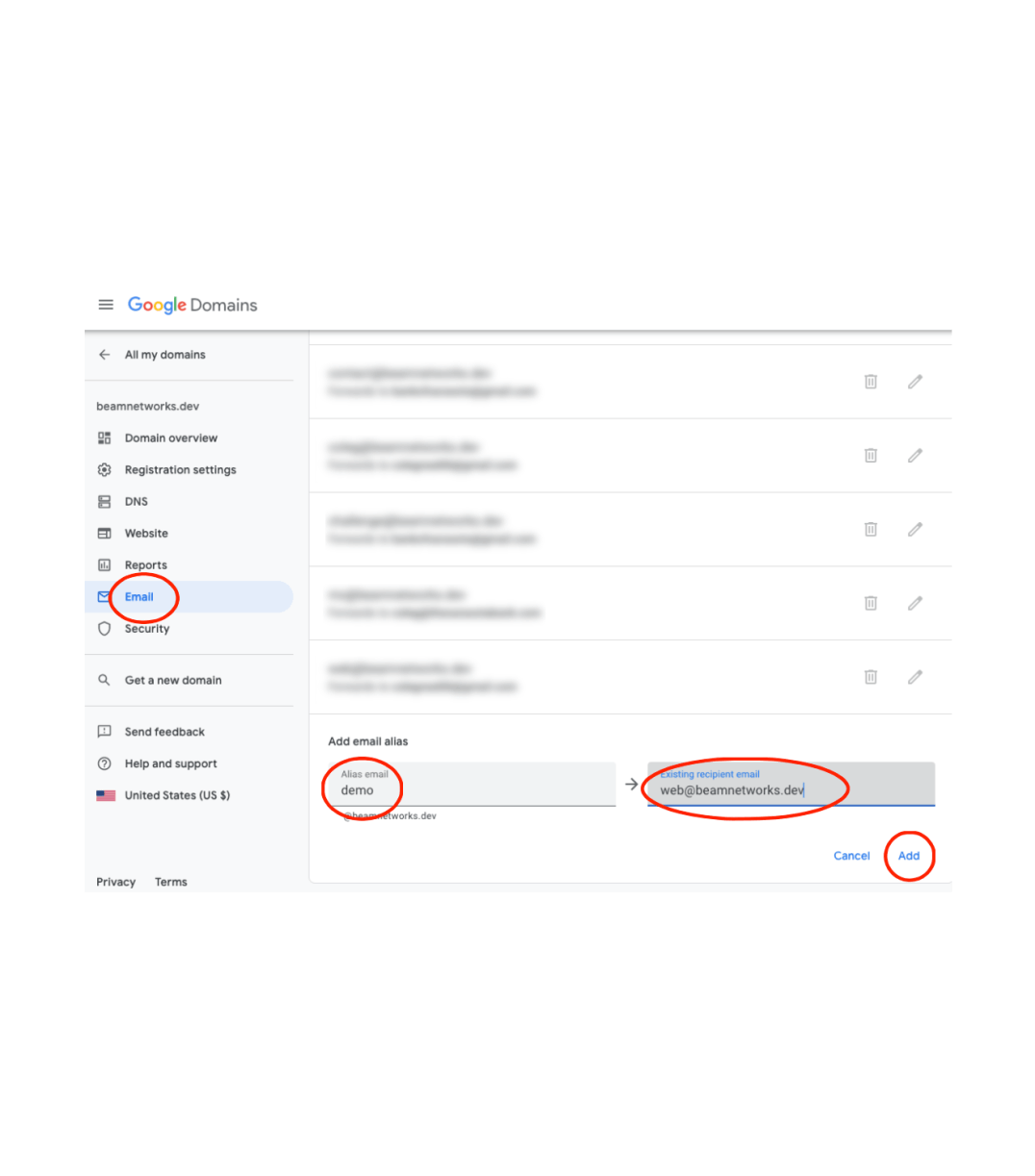
Step 2: Click on your domain > Email
Step 3: Click add new and add a new email, this can be any email you would like to send and receive from. For the recipient email, type in the email address of the Google Account you would like to send and receive from.
Step 4, click add and check your email. If it is the first time you are creating an alias to go to that email, you will need to verify it.
¶ Add Your Email in Gmail
Step 1: You can either click the blue button again, or go to Gmail and click on settings in the top right and see all settings. Next click Accounts and Import. (Clicking the link will take you right there).
Step 2: Click Add Another Email Address (next to "send mail as"). There will be a yellowish orange window that pops up.
Step 3: For the Name option, this will be your name when you send an email from this address. In this case, the sender name is "Beam Networks". The email address is the email you will be sending from.
Step 4: Leave the option "treat as alias" enabled, if you would like people to respond to another email, click on the option below treat as alias.
¶ Generate an App Password
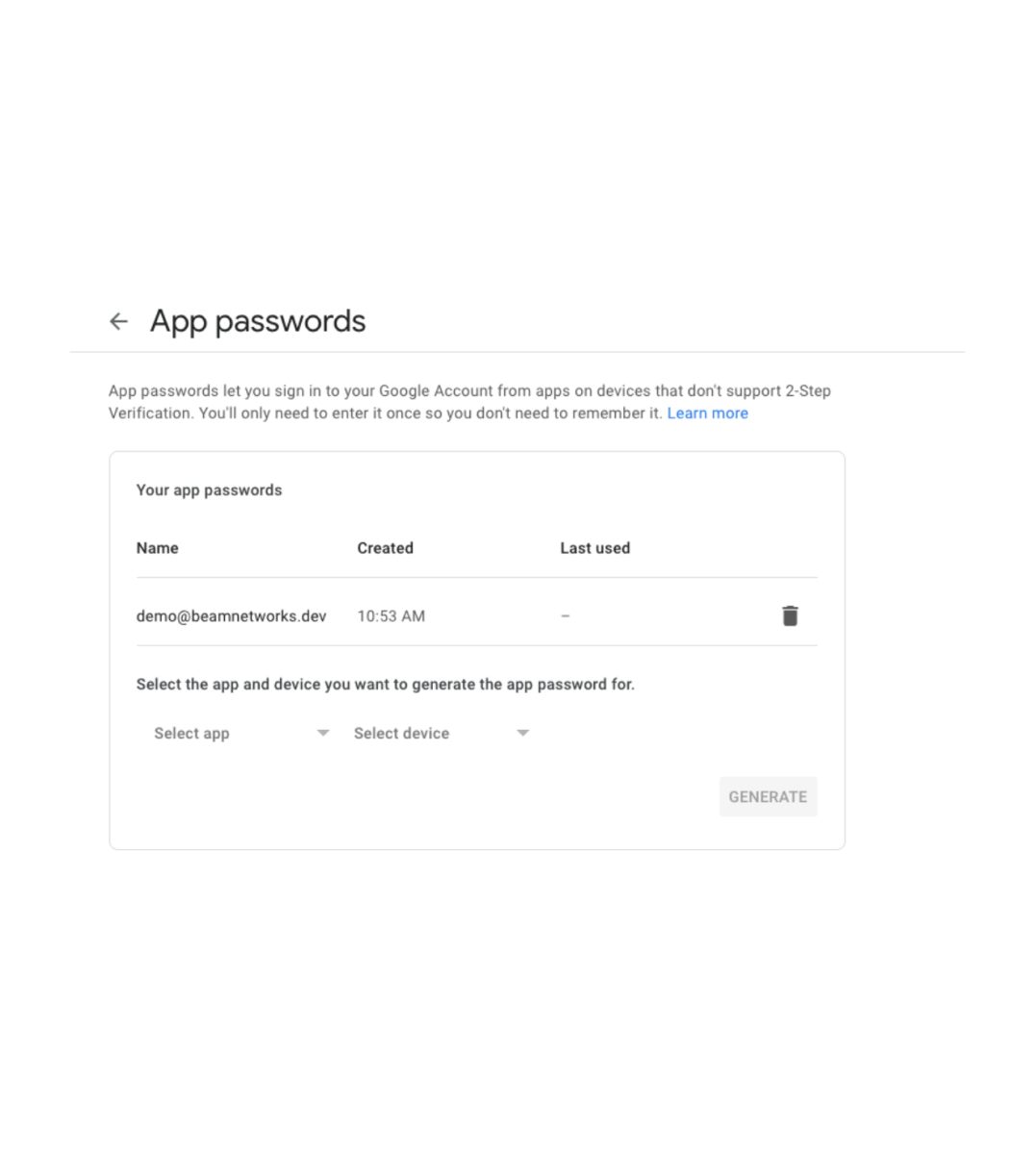
If you have 2 factor authentication on your Google Account, (which you should!), you will need to make an app password. To do this, go to accounts.google.com. Click on Security and then App Passwords. Click Select App and then click mail and then for the name, just make it the email account you are going to be sending from, that is just for you to know what it's for. Click Generate and copy that password, keep it secret!
Note: KEEP THIS TAB OPEN, YOU WILL NEED IT LATER
¶ Complete Setup
Now go back to Gmail, and paste the app password in the password field.
For the SMTP Server, type in smtp.gmail.com
The port will be 465 for SSL (More secure than TLS)
You're username is the Google Account you are forwarding the emails too.
Assuming you pasted the password, click Add Account
¶ Temporary Error (404)
There is a very high chance you will receive this error, this is completely normal and nothing to worry about. Wait a minute or so and go back to "Add Your Email to Gmail" and continue from there. Normally on the second time you try this, it will work fine.
¶ Finishing Up
Now we are in the final stages, after repeating the steps and you are on this page, you are good! Open another tab and check your email and enter the code in the white box.
Note: The email with the code may end up in your spam folder. If you don't see the email in your inbox, check your spam folder.
¶ We Done!
You will have to wait a couple minutes, but in a few minutes, reload Gmail and try to send an email, you will see a new field that says "From" and you can change the email you are sending from, you can either send from your new email or your Gmail email! If the send button doesn't work, wait a few more minutes.
Basically what we just did was use Google's free email servers to host our email address and forward it correctly. You can add as many emails as you'd like to your Gmail account, the process is the same.
If you have any other questions or something isn't working right, let us know and we can try to help. Send an email to [email protected] and we will help you if we can.